The app will not install or update
Check that you are using the latest store version first. If installation hangs, also check free storage and network status.
This page covers the most common issues first: installation, saving to the phone calendar, photo permission, sharing, existing subscriptions, and notification problems. Check the matching section below, and email us if you still need help.
Pick the item that feels closest to your situation. Many issues are solved right away from one of these checks.
Check that you are using the latest store version first. If installation hangs, also check free storage and network status.
Open your phone settings and make sure AllTP has calendar permission.
Make sure photo permission is allowed and give the app a moment after choosing the image. Network conditions can also affect the result.
Update both the sending and receiving app first. In many cases, sending the link again also helps.
Free update: availability depends on each store release. Until the update reaches your device, your current version may still show paid options. An existing store subscription is not automatically cancelled by the free update. Check or cancel it in your App Store or Google Play subscription settings.
The result can look different depending on whether you use app alerts, device calendar alerts, or country calendar views. Check notification permission and calendar permission together.
Remembering these three screens makes it much easier to know where the answer usually lives.

This is the starting screen for choosing a date and reviewing the schedule flow.
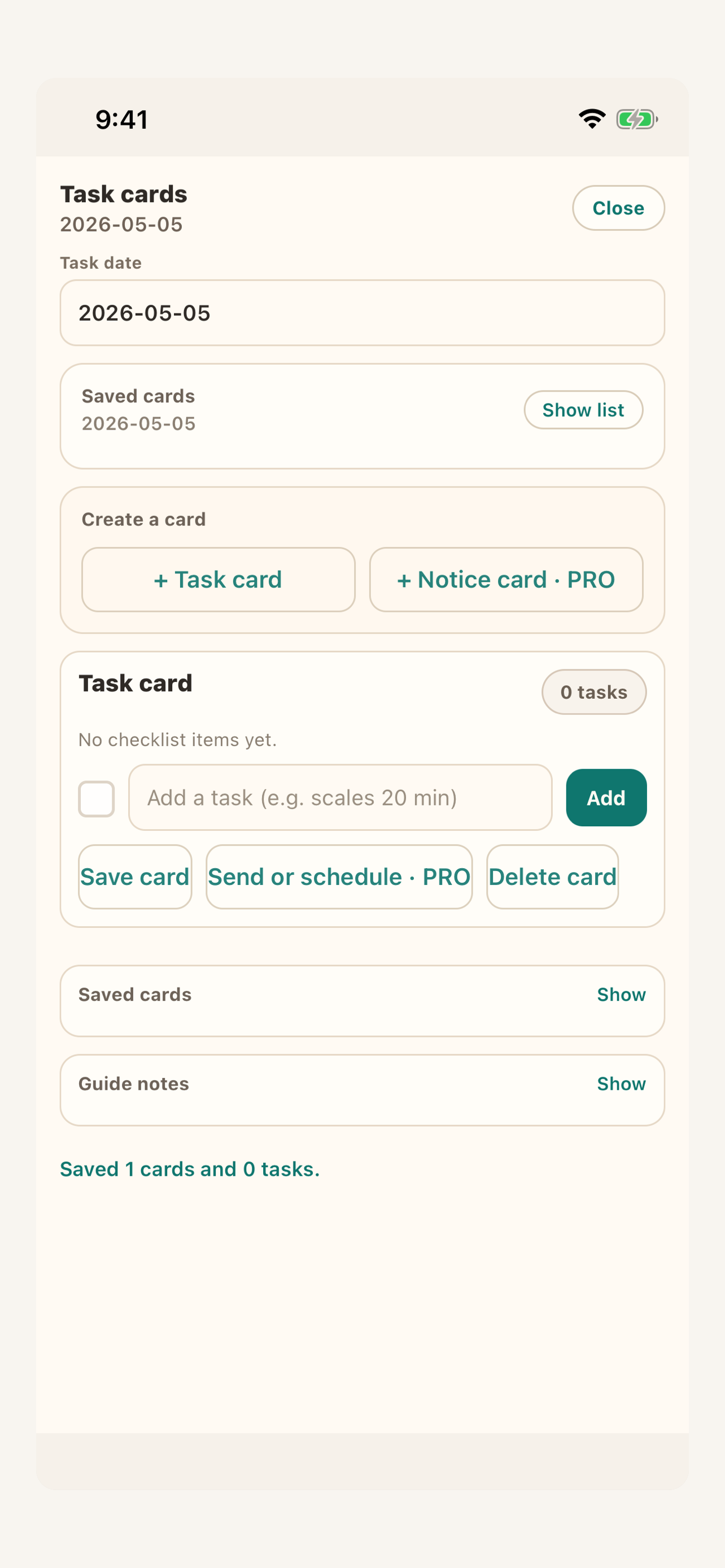
Open this when the issue is about task cards, notice cards, or sending cards.
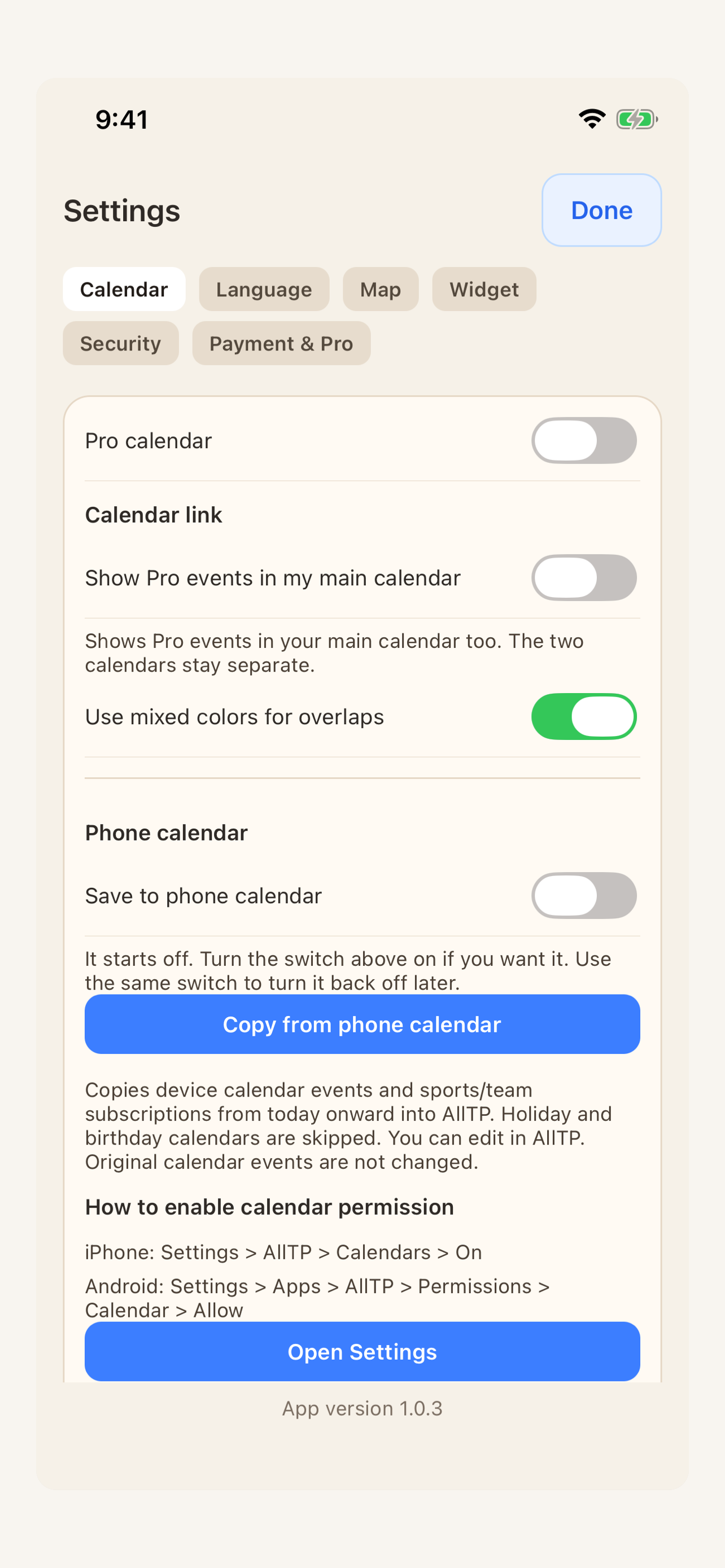
Check calendar permissions and app settings here. Manage any existing subscription through your store account.
These are the questions people ask most often, in simple everyday language.
Yes. A schedule opens like a schedule, and a task opens like a task card on their side.
All features in the free update are included without a Pro purchase. Scheduled sharing opens a share sheet after a reminder; it does not automatically send messages.
Yes. If you save to the device calendar, you can also use the built-in iPhone or Android calendar flow.
Add the country calendars you need. You can switch between them quickly from the top chips.
Free update: availability depends on each store release. Until the update reaches your device, your current version may still show paid options.
Diary and general photo-to-PDF tools are retired in the free update. Existing saved data is retained; tasks, cards, photo text and invoice sharing remain.
Share an invoice as a PDF, or open its preview and send the selected page as an image. For several pages, repeat for each page.
Ads may appear in the app and on eligible public website pages after approval and rollout. Advertising and privacy choices are explained in our Privacy Policy.
Free access and existing subscriptions